Product modes are different states in which the software may operate. Common examples of product modes are trial mode and full-featured mode. Other possible uses include implementing various licensing schemes (home license, business license, enterprise license) with specific functional differences, or creating alpha/beta/promo versions with certain time limitations. You can also create custom license types using the Data field (see below).
You can add a new mode to the product in two ways: either click the Add New Mode item in the Products section, or hover over a core product in the list to open the function menu and click the Add Mode link:
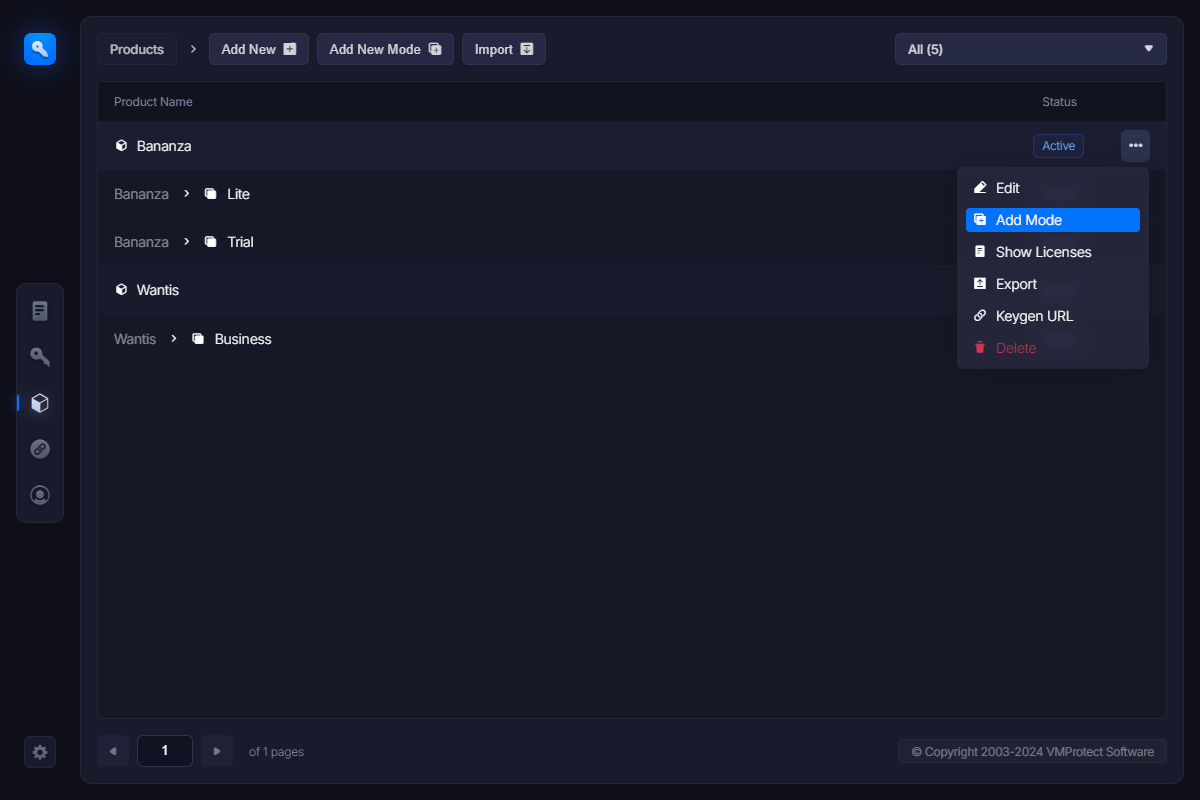
The following screen appears:
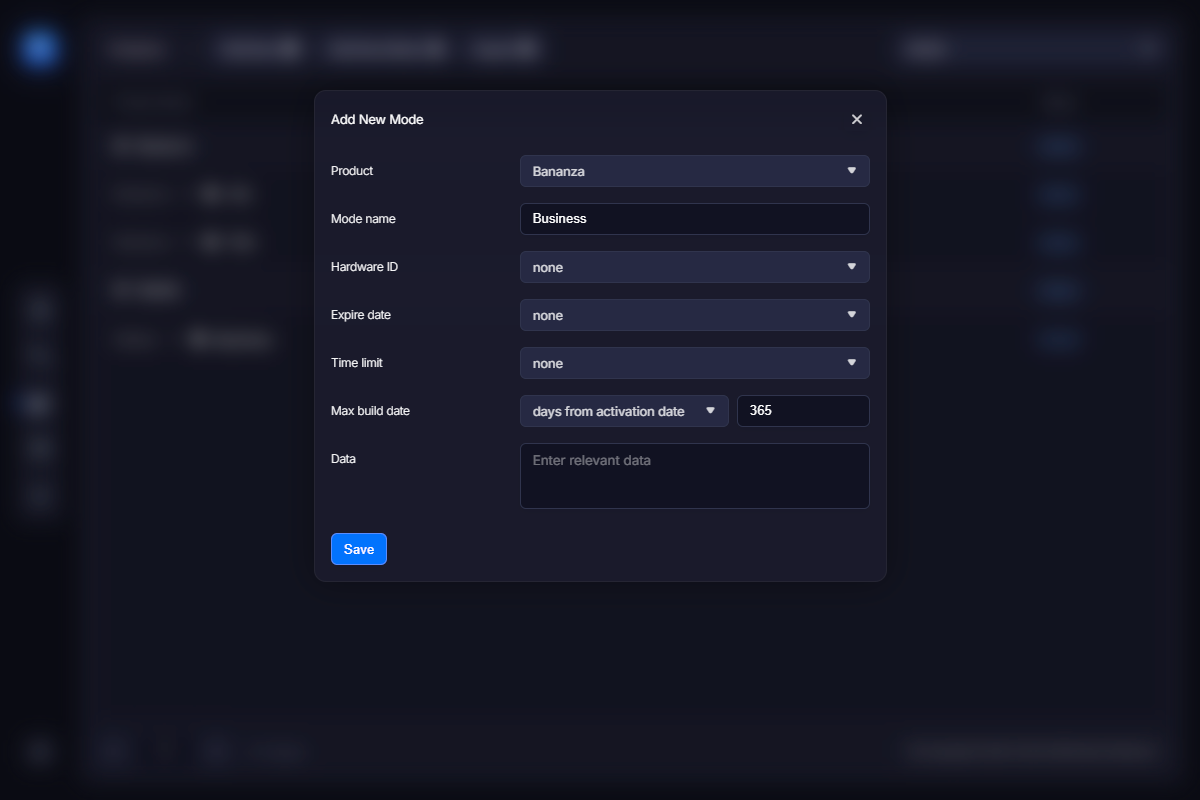
Select the product this mode applies to and specify the name of the mode. The remaining options define how this product mode is limited:
Hardware ID – links the serial number to a specific hardware configuration, effectively preventing multiple activations of the software with the same serial number on different computers. You can instruct WebLM to take hardware information from the URL — in this case, it is passed from the user’s computer upon first activation. Alternatively, you can specify a fixed value manually — this allows you to lock this product mode to a specific computer only.
Expire date – sets the period during which this product mode remains active and available for activation.
- “none” means the product mode never expires — use this only for full-featured versions of your software;
- “days from activation date” – the product will be active and available for activation for a specified number of days starting from the activation date. This is a great option for trial versions of the software.
- “days from purchase date” – very similar to the above, this option allows usage of the product for a specified number of days starting from the purchase date. You may prefer this option if you need to encourage users to activate the program shortly after purchase.
- “value” – set the date manually. This option is useful for beta versions or promo licenses that should not work past a specified date.
If the expiration date is set, the application can read it from the serial number and warn the user about upcoming expiration.
Time limit – sets the amount of time the application can run after launch. Games or multimedia software are usually the best candidates for this type of limitation.
Max build date – use this option to prevent running newer versions of the software with the same key. For example, you can allow free upgrades within 120 days after purchase and require paid renewal afterward.
Data – you can pass additional information to the application in this field. Fill it with specific data to add extra conditions to functional limitations, or use this field to indicate different product versions and make the application respond accordingly. The application can retrieve serial number data using the VMProtectGetSerialNumberData API function.
Note: you can enter both text and binary data in this field. Binary data should be entered using the \0x prefix and the appropriate hexadecimal code, for example: \0x20.