To add a new license, click the Add button above, or select the Add New License item in the Licenses section on the left. The following screen appears:
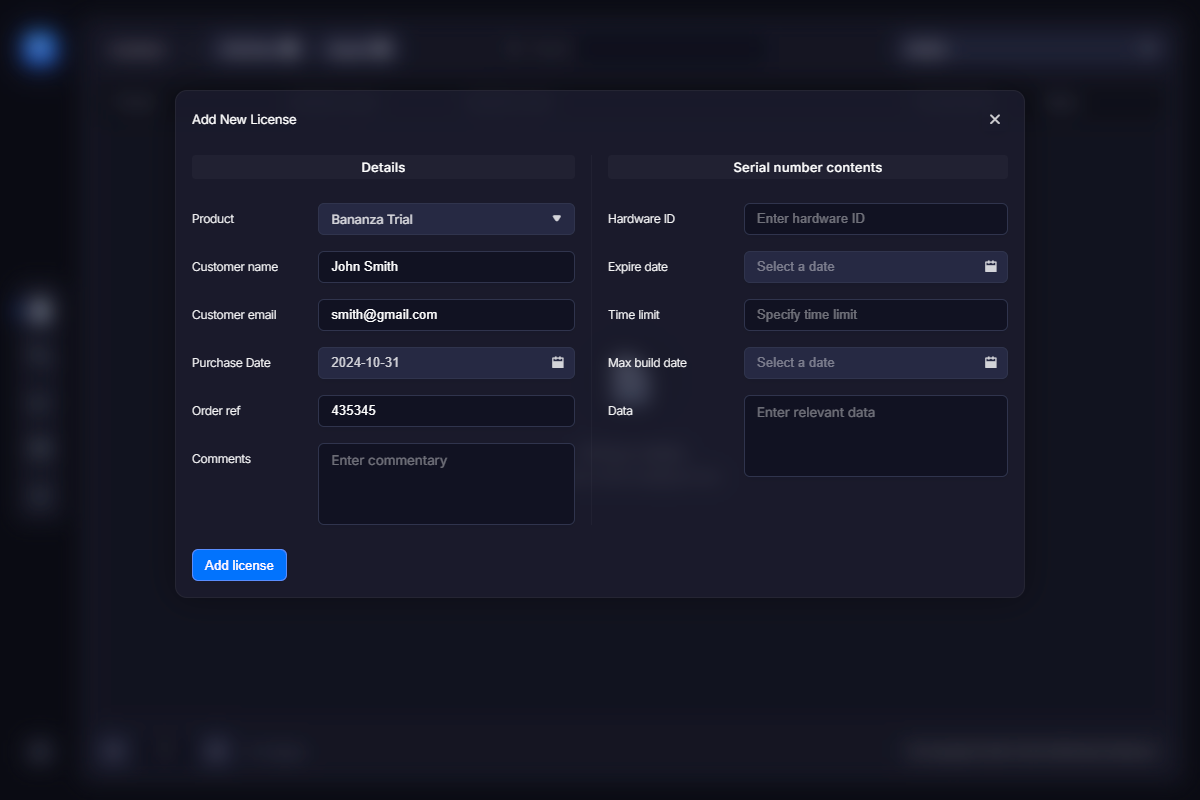
Select the product the new code applies to. Then fill in the customer name, email address, purchase date, order reference number, and optional comments. The second block of options is mostly used with automatic license key generation.
The hardware ID links the serial number to a specific hardware configuration, effectively preventing multiple activations of the software with the same serial number on different computers.
The Expire date parameter defines how long the serial number should remain valid. The Time limit option sets the number of minutes the license remains valid after the software is launched. Both options are convenient for providing time-limited keys, free trial giveaways, or issuing keys for testing purposes.
The Max build date option can be used to make some licenses valid only up to a certain software version compiled before the specified date. That is, such a license would work with, for example, version 1.0, but would stop working with version 2.0 if its compilation date is later than the value of this parameter.
The Data option allows you to encode additional data into the serial number and securely pass this information to the software, enabling it to react, function, or appear differently depending on that data. For example, you could pass branding information to the software to display different logos or links. Another example is limiting software functionality based on specific conditions. You can pass those conditions via the Data field. The application can retrieve serial number data using the VMProtectGetSerialNumberData API function.
Note: you can enter both text and binary data in this field. Binary data should be entered using the "\x" prefix and the appropriate hexadecimal code, for example: \x20.