If everything goes OK, you should see the “That’s all” screen, which means that you have successfully installed WebLM without writing a single line of PHP code or anything similar. That’s really cool.
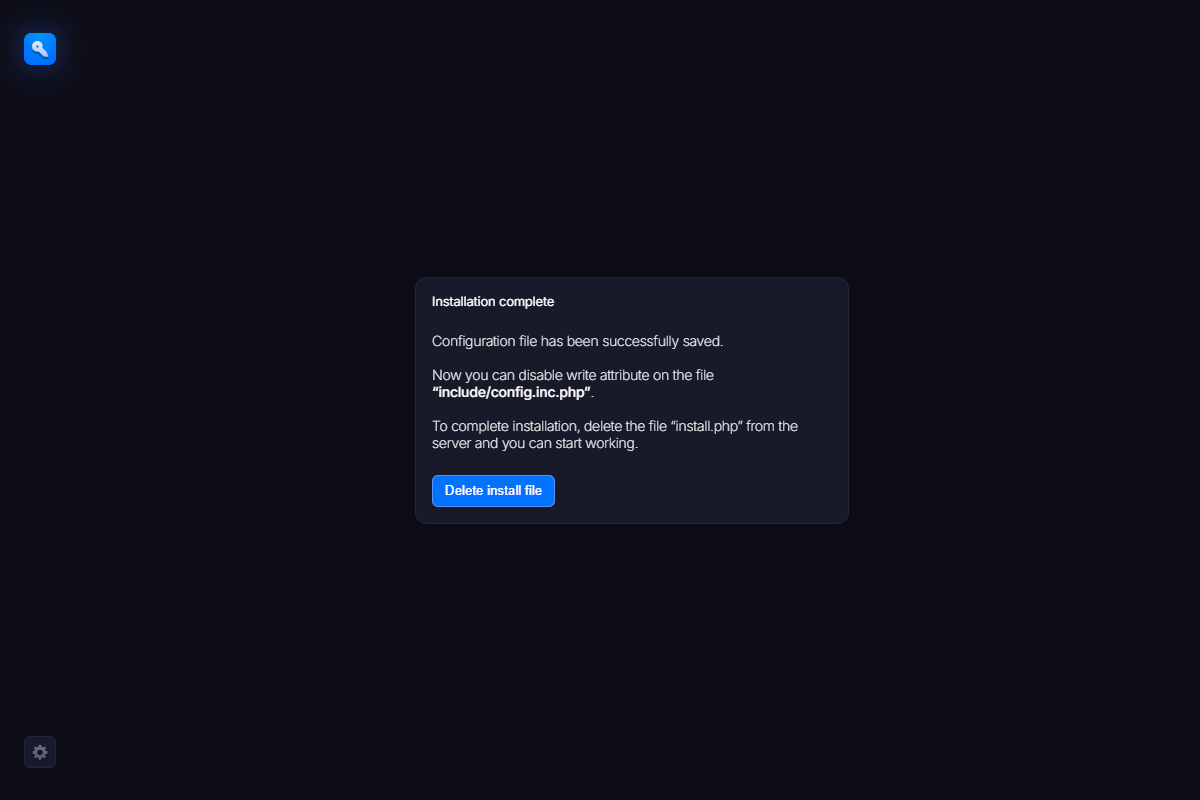
Now go to the installation folder and remove the install.php file, as suggested on the screen above. We also recommend removing write permissions from the configuration file. This is required for security reasons. You don’t want others to reinstall your system or gain access to it by modifying configuration parameters. To prevent possible security issues, make sure to handle this step carefully.
Usually, you can modify file permissions in your hosting provider’s control panel.