Initialization
By default, licensing functions are disabled. To enable them, you must create a key pair in the “Licenses” subsection of the “Project” section. If the project is linked to the license manager database (in older versions of VMProtect, the license manager was a standalone program), VMProtect will prompt you to import the corresponding licenses into the project. After initialization is complete, the “Lock to Serial Number” option will become available, and you will be able to create and process serial numbers.
Licenses
The “Licenses” section displays the full list of licenses in the left panel and the parameters of the selected item in the main panel.
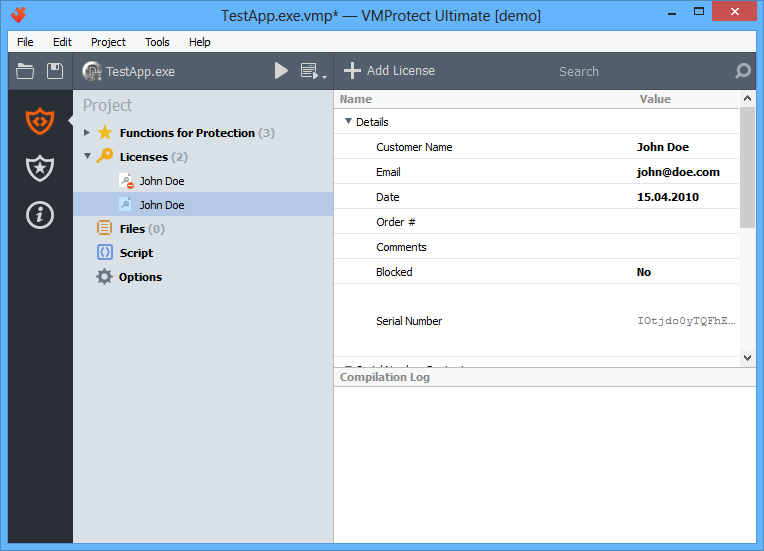
The right panel displays detailed information about the selected license. It also allows you to block a serial number, copy it to the clipboard, or view hardware ID information (by clicking it).
Creating a license
To add a new license, click the corresponding button on the toolbar. The Add License dialog will appear:
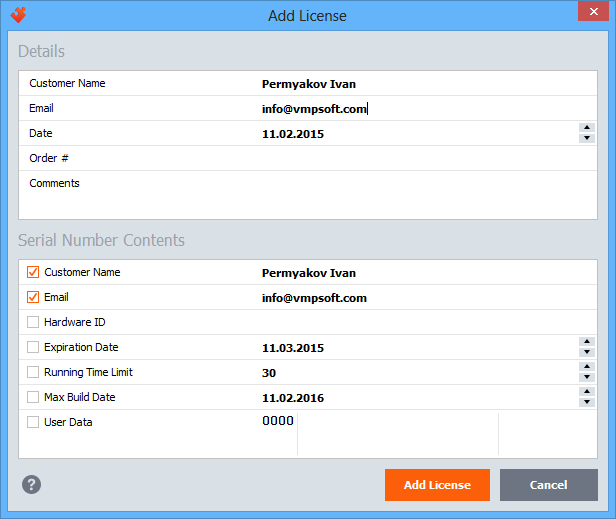
The upper part of the dialog allows you to specify the main parameters of the new license. The lower section configures which parameters will be included in the serial number and allows you to add additional data, such as a hardware identifier or custom user data. When you have finished filling in the data, click OK, and VMProtect will create a new license.
Removing and blocking licenses
To delete a license, right-click it in the list and choose “Delete” from the context menu, or simply select it and press Del. To block a license, set the “Blocked” parameter in the main panel to “Yes”.
There is a difference between deleting and blocking a license. Removed serial numbers are not blocked by the licensing system; they simply no longer exist in the database. If a license was created by mistake and the serial number has never been distributed, you can safely delete it. However, if a serial number has been compromised, you should block the license instead of deleting it. In this case, the information about the serial number is passed to the licensing system, and it will no longer accept it.
Importing serial numbers
Serial numbers can be created not only in VMProtect but also in third-party programs (key generators). Key generators can automatically provide e-commerce systems with serial numbers when a license is purchased. To add such serial numbers to the database, you can import them. To import serial numbers, press Ctrl+I or select the “Import” command in the “Project” menu.
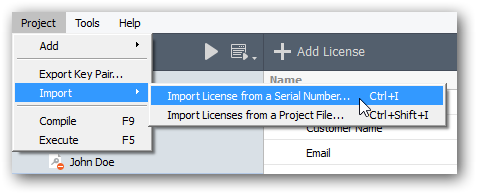
The first step of importing a serial number is the import dialog:
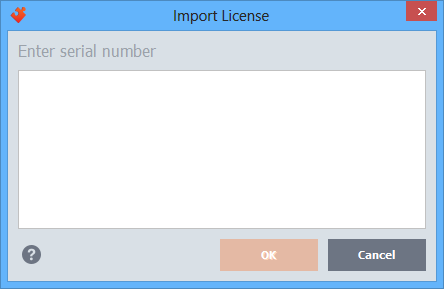
If the entered license already exists in the database, the license editing window will open. Otherwise, the new license dialog will appear, where you can adjust the license information and confirm creation by clicking OK. The license is then added to the database.
Exporting license parameters
External key generators require the product’s secret key to function properly. You can obtain this information in the most suitable form using the “Export Key Pair” command from the “Project” menu. The export dialog will appear:
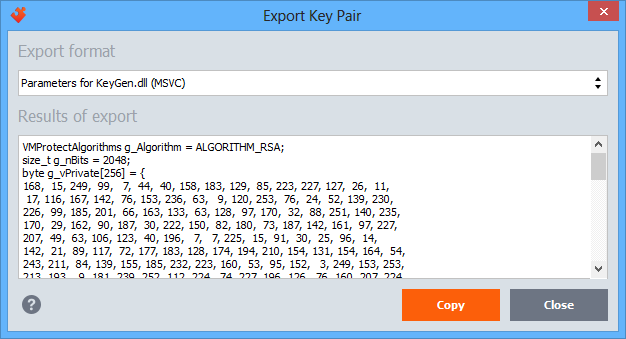
The “Export format” field allows you to select one of the supported formats, while the “Export result” field contains the key data in the most appropriate format for the selected key generator type. To copy the contents to the clipboard, click the “Copy” button.