Get Demo
  • Windows
  • MacOS
  • Linux

Script section

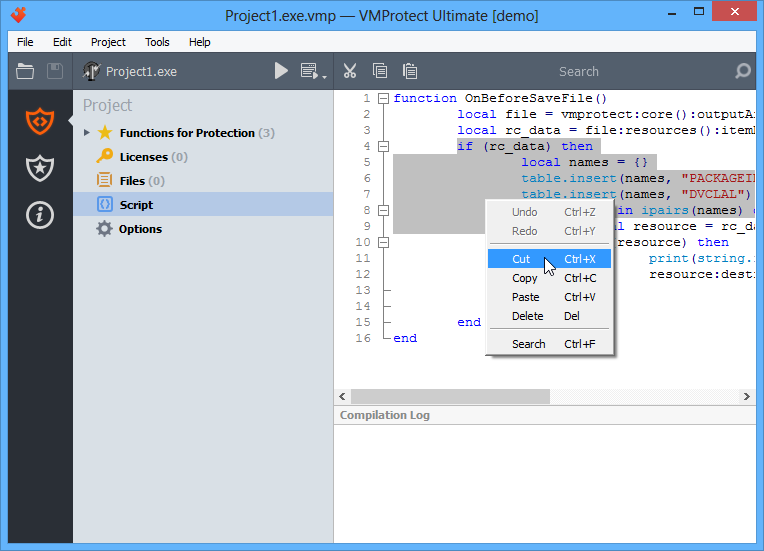
The “Script” subsection of the “Project” section is used for writing scripts using the built-in script language:

You can edit the script code in the main panel of the section. The right-click menu allows you to manipulate code fragments.

Certain code blocks (loops, functions) can be collapsed or expanded using the hierarchy control (plus or minus) next to the corresponding line number.

By right-clicking the section name, you can exclude the script from compilation. An excluded script is not executed and is not processed by the program. This parameter is saved in the project settings.

Last updated 10 days ago

Files section

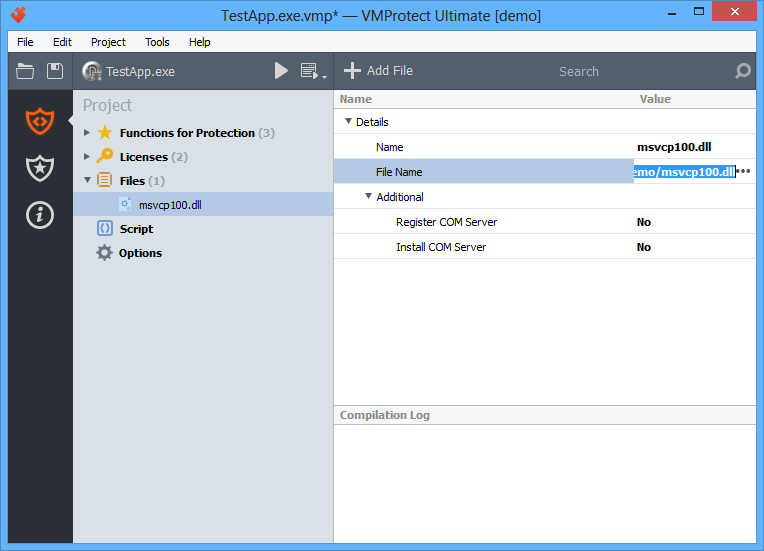
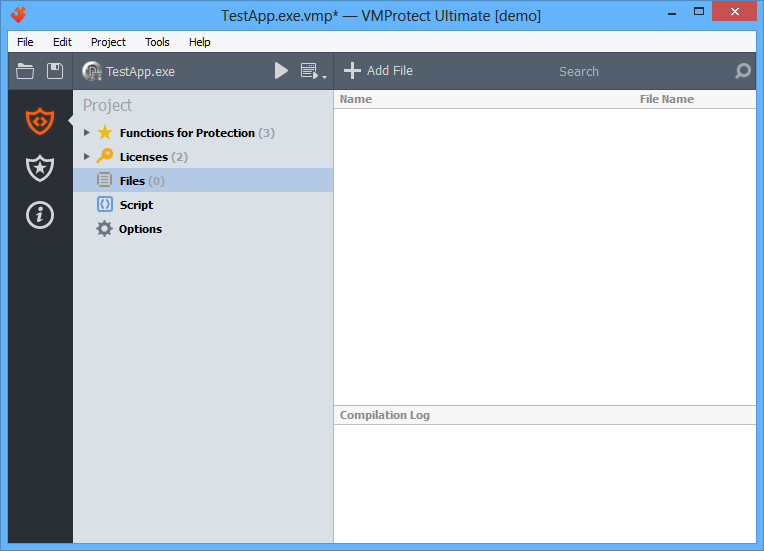
The “Files” section allows the developer to include additional data required for application operation into the protected EXE file, such as images, data files, text resources, and dynamically linked libraries. During execution of the protected EXE file, all types of data, including DLLs, are loaded directly from the process memory, bypassing writing these data to disk.

The Add File toolbar button allows you to add a new file to the project. You can also add a file using the context menu:

To adjust the properties of a selected file, select it in the left list and edit its title, file name, or other properties.

To remove a file from the list of protected objects, right-click it and choose “Delete”, or simply select it and press Del.

By right-clicking a section name, you can exclude the file from compilation. Compilation exclusions are saved in the project file.

Last updated 10 days ago

Managing licenses

Initialization

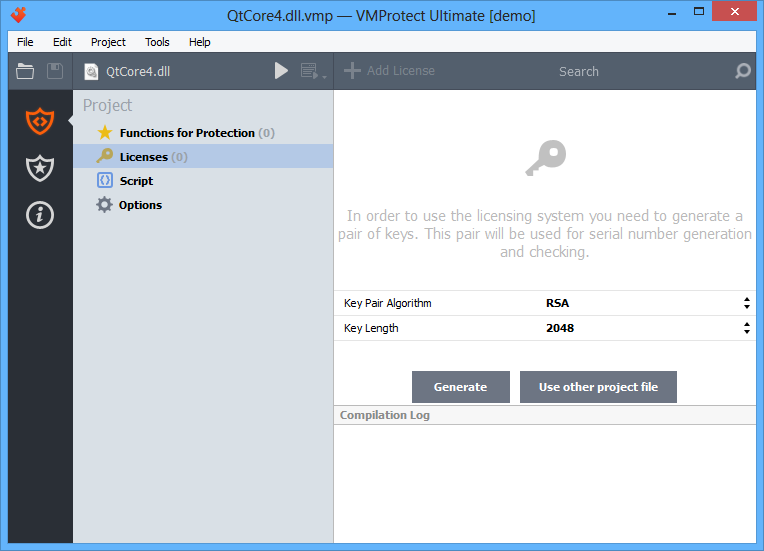
By default, licensing functions are disabled. To enable them, you must create a key pair in the “Licenses” subsection of the “Project” section. If the project is linked to the license manager database (in older versions of VMProtect, the license manager was a standalone program), VMProtect will prompt you to import the corresponding licenses into the project. After initialization is complete, the “Lock to Serial Number” option will become available, and you will be able to create and process serial numbers.

Licenses

The “Licenses” section displays the full list of licenses in the left panel and the parameters of the selected item in the main panel.
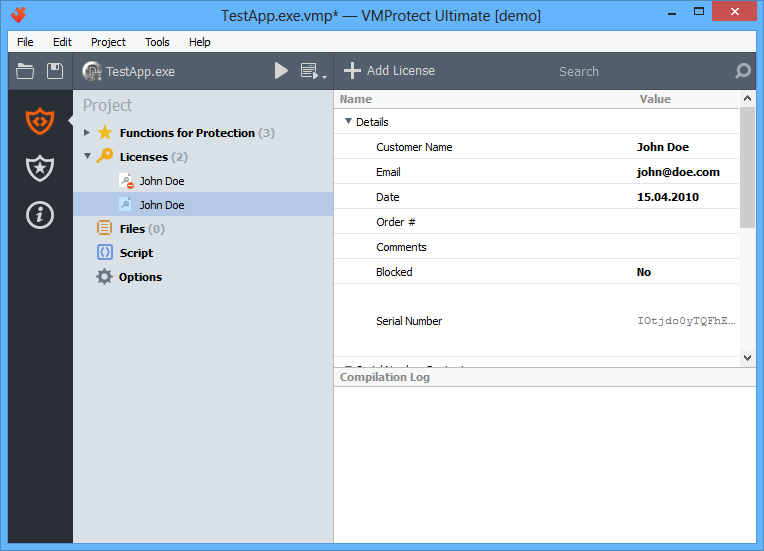
The right panel displays detailed information about the selected license. It also allows you to block a serial number, copy it to the clipboard, or view hardware ID information (by clicking it).

Creating a license

To add a new license, click the corresponding button on the toolbar. The Add License dialog will appear:
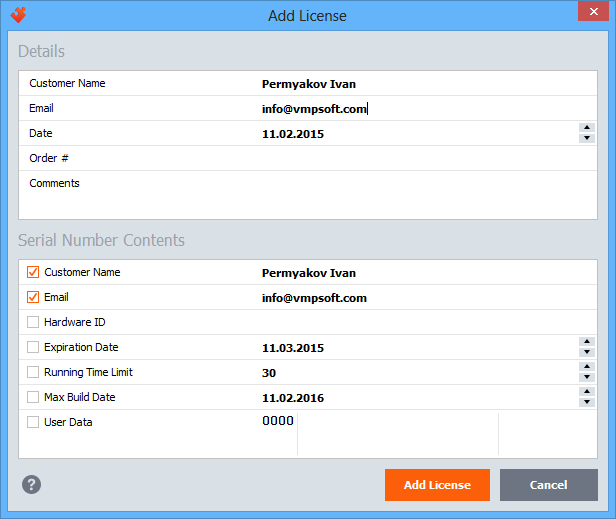
The upper part of the dialog allows you to specify the main parameters of the new license. The lower section configures which parameters will be included in the serial number and allows you to add additional data, such as a hardware identifier or custom user data. When you have finished filling in the data, click OK, and VMProtect will create a new license.

Removing and blocking licenses

To delete a license, right-click it in the list and choose “Delete” from the context menu, or simply select it and press Del. To block a license, set the “Blocked” parameter in the main panel to “Yes”.

There is a difference between deleting and blocking a license. Removed serial numbers are not blocked by the licensing system; they simply no longer exist in the database. If a license was created by mistake and the serial number has never been distributed, you can safely delete it. However, if a serial number has been compromised, you should block the license instead of deleting it. In this case, the information about the serial number is passed to the licensing system, and it will no longer accept it.

Importing serial numbers

Serial numbers can be created not only in VMProtect but also in third-party programs (key generators). Key generators can automatically provide e-commerce systems with serial numbers when a license is purchased. To add such serial numbers to the database, you can import them. To import serial numbers, press Ctrl+I or select the “Import” command in the “Project” menu.
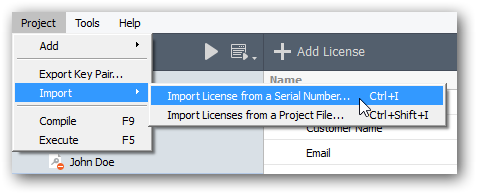
The first step of importing a serial number is the import dialog:
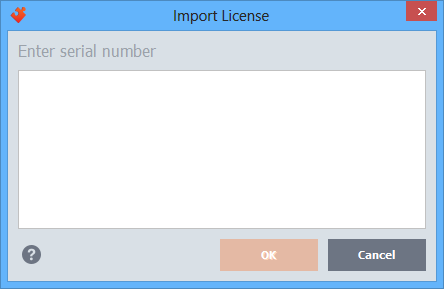
If the entered license already exists in the database, the license editing window will open. Otherwise, the new license dialog will appear, where you can adjust the license information and confirm creation by clicking OK. The license is then added to the database.

Exporting license parameters

External key generators require the product’s secret key to function properly. You can obtain this information in the most suitable form using the “Export Key Pair” command from the “Project” menu. The export dialog will appear:
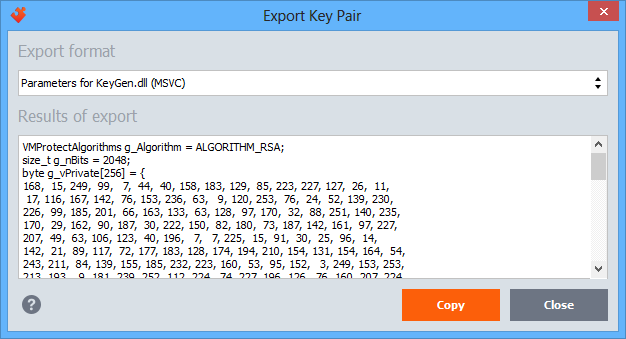
The “Export format” field allows you to select one of the supported formats, while the “Export result” field contains the key data in the most appropriate format for the selected key generator type. To copy the contents to the clipboard, click the “Copy” button.
Last updated 10 days ago

Functions for Protection section

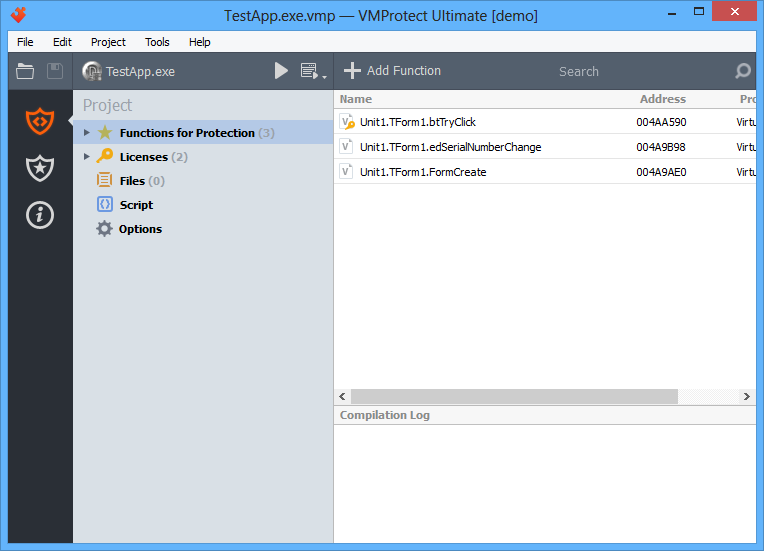
This section is used to choose which functions must be protected.

Adding a function

To add a new object to the project, click the “Add Function” button on the toolbar or select the corresponding item in the context menu:

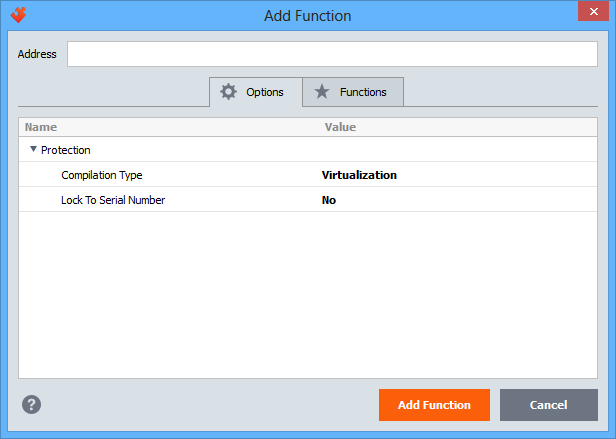
A new function dialog will appear:

Specify the address of the function, or start typing the function name in the quick search box to select it directly from the list on the “Functions” tab. Use multi-selection if you want to add several functions at once. All selected functions will be added with the chosen protection options.

Options

  • Compilation type — selects how the object is compiled. Choosing the appropriate protection method for each object (procedure, function, or code fragment) ensures an optimal balance between performance and security. VMProtect allows the following compilation types for each protected object:
    • Mutation. The executable code is modified at the CPU instruction level — existing instructions are mutated, “garbage” instructions are added, and so on. This compilation type provides relatively weak protection against reverse engineering. Its main purpose is to prevent detection by automated signature scanners (PEiD + KANAL, IDA + FLIRT, etc.). It is typically used for library functions that do not require strong protection. Mutation provides a low level of protection but high execution performance.
    • Virtualization. The executable code is translated into bytecode executed on a virtual machine. This compilation type should be used for critical code sections that require strong protection against analysis while maintaining acceptable performance. Virtualization provides a medium level of protection and medium execution speed.
    • Ultra (mutation + virtualization). The executable code is first mutated at the instruction level and then translated into bytecode executed on a virtual machine. This mode should be used for code fragments where execution speed is not critical. Ultra protection provides a high level of security but lower performance.
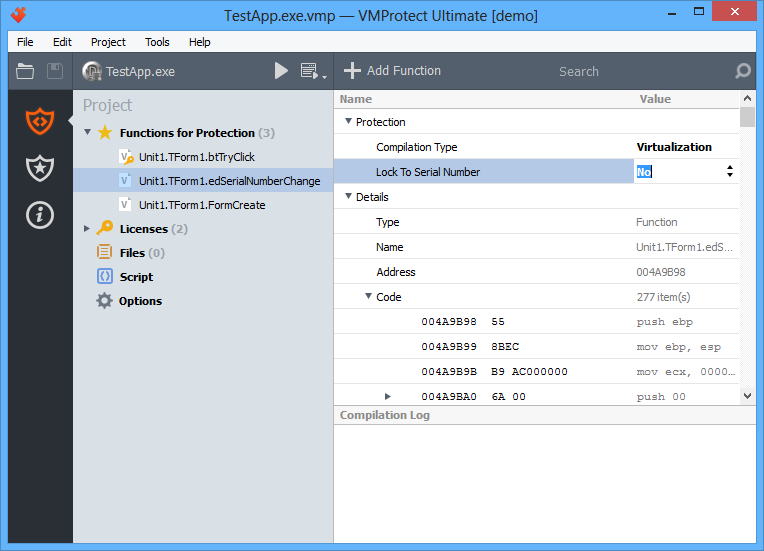
  • Lock to Serial Number — if this option is enabled, the protected function becomes unavailable without a valid serial number. If the check fails, the application will terminate. This allows restricting access to specific application features in the unregistered version.

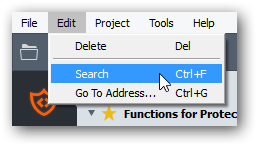
Search

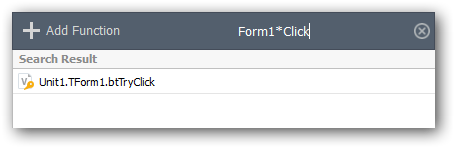
You can locate objects by name using the quick search box:

You can use the following wildcard symbols in the search box:

  • * — replaces any number of characters;
  • ? — replaces a single character.

Adding a folder

You can add a folder to the project using the context menu:

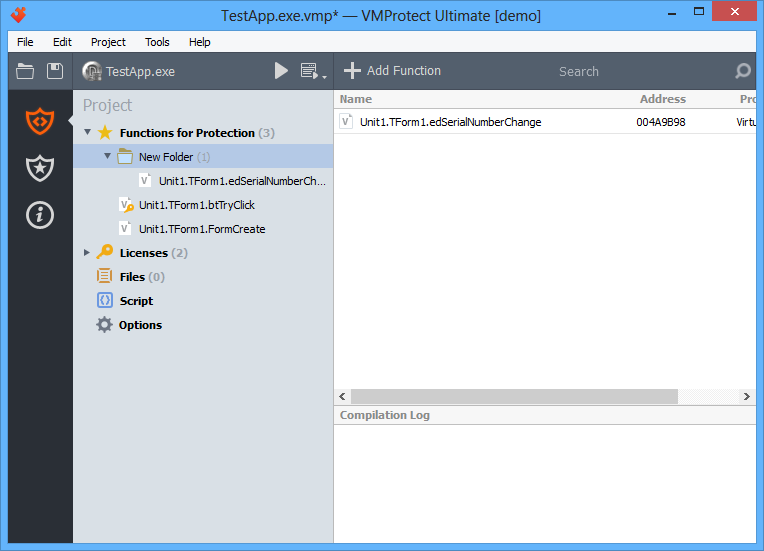
Folders are used to group protected objects and allow you to change protection parameters (such as exclusion from compilation or compilation type) for all objects in a folder at once.

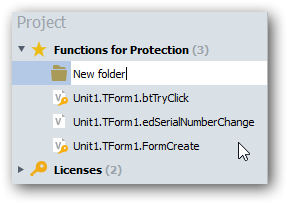
Enter the name of the new folder:

Editing objects

The right side of the window displays the contents of the selected object. If a protected object is selected in the project tree, the right panel shows a disassembled view of that object:

Code

If a folder is selected in the project tree, the right panel displays the list of functions in that folder:

You can move functions to and from folders using simple drag and drop.

Last updated 10 days ago

Project section

The “Project” section contains the following subsections:

  • Functions for Protection — allows selecting objects for protection
  • Licenses — allows managing licenses and serial numbers
  • Files — allows including additional data files or DLLs in the protected EXE file
  • Script — allows enhancing protection capabilities using the built-in LUA scripting language
  • Options — allows configuring application protection parameters
Last updated 10 days ago

Toolbar

The toolbar consists of the following elements:

  • Open a project or a protected file:
  • Save the project:
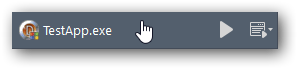
  • Name of the protected file:
  • Compile the project:
  • Execute the original/protected file (clicking the drop-down arrow allows you to specify command-line parameters):
  • Default action (depends on the selected section):
  • Quick search box:
Last updated 10 days ago

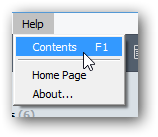
Help menu

  • Home Page — opens the VMProtect homepage;
  • Contents — opens the VMProtect help file;
  • About… — displays general information about VMProtect.
Last updated 10 days ago

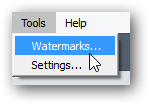
Tools menu

  • Watermarks — opens the Watermarks dialog window:

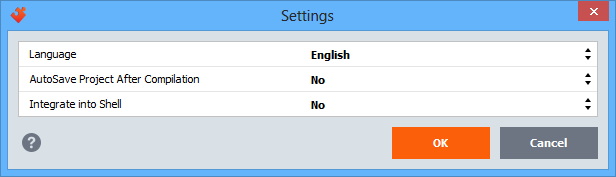
  • Preferences — opens the program Preferences window:

Last updated 10 days ago

Project menu

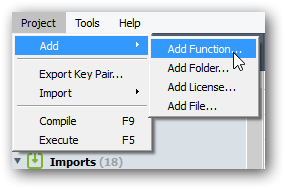
  • Add function — add a new function to the list of protected objects. You can specify the exact address of a function or search for it by name:

  • Add folder — add a folder to the project:

    The use of folders does not affect the protection of objects inside them. Folders are used only to organize protected objects in the project tree. You can move objects into a folder using simple drag and drop;

  • Add license — add a license to the project:

    This command adds a new user license and generates a license key based on the entered user dаta: name, e-mail, date, order ID, and others. You can store this information inside the key, as well as restrict license functionality. For example, you can limit the number of executions or specify an expiration date for the key.

    To add a license, you must first generate a pair of keys:

  • Export Key Pair — exports project keys to the specified format of the key generator:

  • Import — imports a license from a serial number or another project and adds it to the current project.
  • Compile — compiles the protected application with the current protection settings. You can also start compilation using the toolbar button: .
  • Execute — runs the protected application. The original/protected executable can be launched using the toolbar button: . The drop-down arrow allows you to specify command-line parameters for execution.
Last updated 10 days ago

Edit menu

Image

Last updated 10 days ago